Smart Fax: Send Fax from Phone
Hypereact LimitedBusiness
4.85.98K Reviews
- Version
- 1.3.4
- Installs
- 100.00K
- Age Rating
- Everyone
Screenshots
Our Review of Smart Fax: Send Fax from Phone
 Analysis by Appyee
I see Smart Fax: Send Fax from Phone as a practical tool for the awkward moments when a form, signed page, or business document still has to travel by fax. It turns a phone into a way to handle that task without tracking down a machine, and the appeal is simple: send the document while you are already dealing with it. I would think of it as a useful backup for occasional paperwork, rather than a replacement for every part of an office’s document process.
Cost, convenience, and the right expectations
I’d use the cost section to set a practical limit before opening the send flow: decide whether this is a one-off errand or a recurring part of your work, then compare that need with the in-app purchase choices. That small pause helps keep convenience from turning into an unplanned habit, and it leads naturally to the larger question of what the app saves you beyond the fax itself.
What you pay for—and what “free” means
The app is free to install, but that does not mean every fax is free to send. Sending uses credits that can be bought inside the app, with in-app purchase options ranging from $5.99 to $169.99 per item. I would check the available credit choices in the app before relying on it for a large batch, because the cost of a specific fax depends on the option you choose and the work you plan to do. The sensible way to approach it is as a free download with paid use, not as an unlimited no-cost fax service.
That distinction matters if you only fax once in a while. For an urgent single document, paying for access can still be more convenient than finding a print-and-fax counter or arranging time at an office. If faxing is part of your daily workload, though, I would compare recurring use against the credit options before making this your main channel. The purchase range is broad enough that casual and heavier users should make the decision based on their own volume, rather than assuming one purchase suits everyone.
Where the convenience pays off
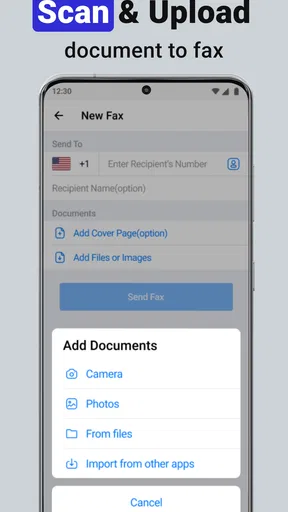
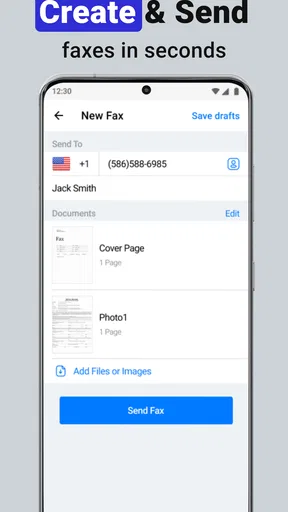
The strongest value is the time and effort saved when the document is already on your phone. You can bring in files from sources such as your gallery, cloud storage, or email attachments, then enter the recipient’s fax number. That makes the app especially handy when a request arrives away from a desk: you do not have to print a file just to feed it into a traditional machine. For someone who handles occasional forms, the ability to keep the whole job on one device is more useful than a long list of office features.
I also like that the workflow covers paper documents, not just files that began digitally. The camera scanning option and image enhancement tools give you a way to capture a page and prepare it for faxing in the same place. It is not a reason to throw out a dedicated scanner if you process stacks of paperwork, but it can save a separate trip for a signed sheet or a form that arrived on paper. That is a concrete convenience, especially when the deadline is close.
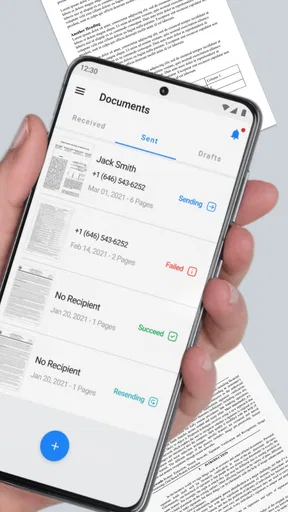
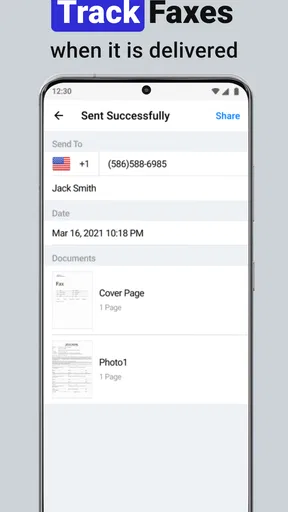
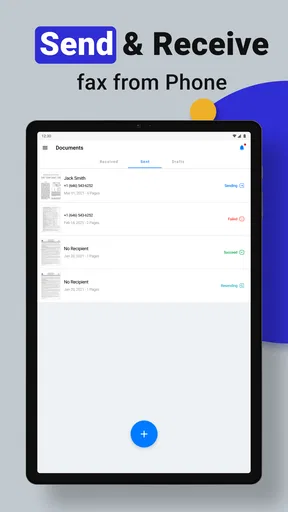
There is a useful distinction between sending something and knowing what happened next. Smart Fax offers sent-fax status tracking and delivery notifications, which can reduce the uncertainty that comes with sending a document and waiting. I would still keep the original file and pay attention to the status rather than treating the act of tapping send as proof of delivery. For time-sensitive paperwork, that small habit makes the tracking feature more valuable: you have a clear point at which to decide whether to follow up.
How it fits beside older fax options
Compared with a physical fax machine, this app avoids the need to be near the hardware and makes phone-held documents easier to send. A traditional machine can make more sense in a workplace that already has one, handles a steady stream of faxes, or needs a shared process among several people. Smart Fax is more appealing when access to a machine is the actual obstacle, or when the task is too occasional to justify maintaining fax equipment.
Compared with visiting a shop or service counter, the phone-based approach can be quicker when the file is ready and you have a stable internet connection. A counter may still be the better option if you want in-person help with a complicated document or do not want to manage an app-based credit purchase. Email is simpler for recipients who accept digital files, but it is not a substitute when the recipient specifically requires a fax. I would use the least complicated channel the recipient accepts; the app earns its place when fax is a real requirement, not merely a habit.
A few habits that prevent avoidable trouble
For a paper original, I would scan on a flat, well-lit surface and check the captured page before sending. Image enhancement can help, but it cannot rescue text that is cut off, blurred, or hidden by a shadow. This is one of the app’s less obvious practical trade-offs: the phone camera removes the need for a scanner, but the quality of the source image still rests with you. Take a moment to inspect the page at a readable size, especially if it contains small print or a signature.
For a multipage document, I would gather the pages and verify their order before starting the send flow. A rushed scan can leave a page out or put a form’s instructions after the page that needs signing. Likewise, confirm the fax number against the recipient’s current instructions instead of relying on a contact entry you have not checked in a while. Contact integration reduces typing, but accuracy still depends on selecting the right person and number.
The cover-page option is useful when a document needs context, such as a short note identifying the sender or explaining what the recipient should do with the pages. A logo and message can make a business fax look more deliberate, but I would keep the cover text concise and avoid adding unnecessary personal details. Treat that page as part of the document the recipient will see, not as a place to include information that does not need to travel with the fax.
Who will get the most from it
I can see this working well for a freelancer sending a signed agreement, a small business owner dealing with a form, or a traveler who has to submit paperwork while away from an office. Picture a contractor receiving a completed document by email while visiting a client: they can import the attachment, check the recipient’s fax number, add a brief cover note if it helps, and send it without finding a machine. The status update then gives them a reason to follow up if the transmission does not complete as expected.
It is also a reasonable fit for people who occasionally need to fax records but do not want to buy or maintain dedicated equipment. The app is from Hypereact Limited, is listed in the Business category, and has a 4.7 average from around 8.8 thousand ratings, with about 4.8 thousand written reviews and over 100 thousand installs. Those figures suggest a well-used option, but they do not tell me whether it suits every recipient or every document workflow; the practical test is whether your fax needs are occasional and mobile.
When another option is better
I would skip it if you rarely encounter fax requirements and the organizations you deal with accept secure uploads or email instead. In that case, an existing digital submission route may be easier and avoid buying fax credits altogether. I would also choose a conventional office setup or a service designed for regular team use if several staff members need shared access, coordinated records, or a consistent high-volume process. A phone app is convenient for one person handling a task; that does not automatically make it the best foundation for an entire office.
Reliable connectivity is another practical condition. The app needs an internet connection, so I would not leave an urgent send until the moment I expect to lose mobile coverage. Prepare the document and check the connection before relying on a last-minute transmission. If you are offline, a physical fax machine or a later send when you are back online may be the more dependable choice.
There is also a privacy judgement to make whenever sensitive paperwork leaves your device through a third-party service. I would use the app only when the recipient’s instructions allow this route, double-check the number, and avoid sending pages that are not necessary. This is not a special drawback unique to phone faxing; it is a sensible step for any method that transmits personal or business documents. Convenience should not replace checking where the document is going.
Quick details and my verdict
Smart Fax: Send Fax from Phone is a free app for Android, rated for Everyone, with a minimum Android requirement of 6.0. Its current version is 1.3.4, and it was released on August 30, 2021. I would treat those as useful compatibility details, then check the app’s current purchase screen and make sure the device you plan to use meets the requirement before a deadline. The key cost point remains that installing it is free while sending can involve paid credits.
My buy-or-skip view is straightforward: try it if you have a genuine fax task, a document ready on your phone, and a reason to avoid a machine. Before sending, inspect the scan, verify the number, consider whether a cover page will help, and check the credit choice against how much you expect to fax. Skip it as a routine expense if your recipients accept simpler digital submissions or if your needs are frequent enough to call for a more structured office solution.
Getting Started with Smart Fax
Jumping into Smart Fax: Send Fax from Phone is as easy as pie. Once you download the app, which is available on both Android and iOS, you’re greeted with a clean, intuitive interface. I’ve tried a few fax apps before, and let me tell you, some can be as confusing as a Rubik’s cube. But this one? It’s straightforward.
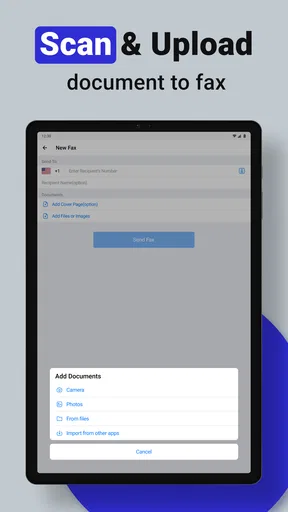
To send your first fax, all you need is a document on your phone. You can import files from various sources like your photo gallery, cloud storage, or even directly from email attachments. The app supports multiple file formats including PDF, JPEG, and PNG, which is a blessing because life's too short to worry about file conversions.
The User Experience
Using the app feels like having a mini office in your hand. Once your document is ready, you simply enter the recipient's fax number. The app even has a nifty contact integration feature, so you don’t have to juggle between your contacts and the app. Just tap, select, and boom – you’re ready to fax.
One of the highlights is its scanning feature. If you’ve got a physical document, you can use your phone’s camera to scan it directly into the app. The built-in image enhancement tools help ensure your fax is as clear as possible. It’s like having a tiny document scanner in your pocket, and it works surprisingly well.
What Makes It Stand Out?
Let’s talk features. The app offers a way to track the status of your sent faxes, which is a lifesaver. No more wondering if your fax got lost in the digital abyss. You’ll receive notifications confirming the delivery, which is super reassuring.
Another cool feature is the ability to add a cover page. You can customize this with your logo and personal message, giving your faxes a professional touch. It’s a small detail, but it makes a big difference, especially if you’re using the app for business purposes.
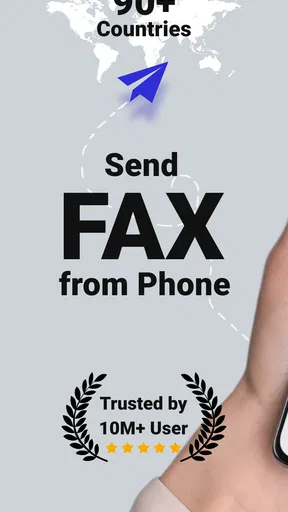
And here’s something that really caught my eye – international faxing. Yes, you can send faxes to over 100 countries. For anyone dealing with international clients or partners, this feature is a game-changer.
A Few Things to Keep in Mind
While the app is mostly free to download, sending faxes does require credits. You can purchase these within the app, and there are several packages to choose from. It’s not a deal-breaker, but something to be aware of if you plan on using it frequently.
Another thing, the app requires a stable internet connection. So, if you’re stuck in the middle of nowhere with no Wi-Fi or data, you might want to wait until you’re back in civilization.
Why You Should Give It a Try
If you’re someone who occasionally needs to send faxes but doesn’t want to invest in a bulky fax machine, this app is a fantastic alternative. It’s convenient, easy to use, and packed with features that make it feel like a professional tool. Whether you’re a business owner, a traveler, or just someone who loves having handy tools at their fingertips, Smart Fax: Send Fax from Phone is worth checking out.
So, next time you find yourself in a bind and need to send a fax ASAP, remember this little gem of an app. It’s like carrying a virtual fax machine in your pocket, minus the weight and space. Give it a whirl – you might just find it’s the solution you didn’t know you needed.
Verdict
Strengths of Smart Fax: Send Fax from Phone
- Easy-to-use interface for quick faxing.
- Supports multiple file formats for upload.
- Includes a built-in scanner feature.
- Secure with encryption for data protection.
- Offers international faxing options.
Limitations of Smart Fax: Send Fax from Phone
- Limited free faxes; subscription needed.
- Sometimes slow delivery for large files.
- Requires stable internet connection.
- No option for direct fax number assignment.
- Customer support response can be slow.
Similar Picks in This Category
View All
LinkedIn: Community & Network
LinkedIn3.8

Zoom Workplace
zoom.com4.1

Microsoft Teams
Microsoft Corporation4.6

Meta Business Suite
Meta Platforms, Inc.4.6

Webex Meetings
Cisco Systems, Inc.4.5

TeamViewer Remote Control
TeamViewer4.4
Frequently Asked Questions
What is Smart Fax: Send Fax from Phone?
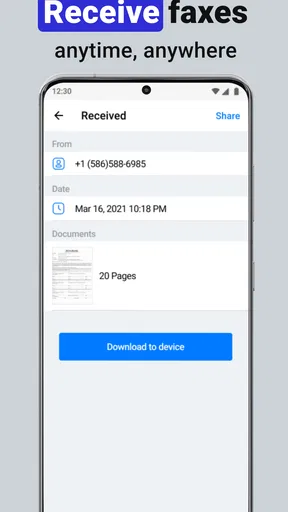
Smart Fax is an app designed to turn your smartphone into a portable fax machine. It allows users to send faxes directly from their phones without needing a traditional fax machine or dedicated phone line. This app is particularly useful for professionals who need to send documents on the go.
Is Smart Fax secure for sending sensitive documents?
Yes, Smart Fax uses encryption to ensure that your documents are securely transmitted over the internet. The app is designed to protect sensitive information, making it a reliable choice for sending confidential documents. However, it's always recommended to check the app's privacy policy for detailed security practices.
What file formats does Smart Fax support?
Smart Fax supports a wide range of file formats, including PDF, DOC, JPG, and PNG. This flexibility allows users to send various types of documents without the need for conversion. Users can also scan documents using their phone's camera and send them as faxes directly from the app.
Are there any costs associated with using Smart Fax?
While Smart Fax may offer a free trial or limited free features, sending faxes usually incurs a cost. Users can purchase credits or subscribe to a plan for regular use. It's important to review the pricing details in the app to understand the costs involved for your specific needs.
Is an internet connection required to use Smart Fax?
Yes, an internet connection is necessary to send faxes using Smart Fax. The app relies on online services to transmit documents, so either Wi-Fi or mobile data is required. This ensures that your documents are sent quickly and efficiently to the recipient.
